PrintPLANR Help Center
PrintPLANR Help Center Overview
PrintPLANR Help Center is a centralized system to provide our Customers access to our Knowledge Base and a Ticketing system.
- Knowledge Base is a library of articles which consists of instructions, FAQ and updates related to the features and functionalities available in the PrintPLANR MIS & W2P software
- Ticketing system will allow PrintPLANR users to raise requests with PrintPLANR support team. This requests can be for any questions, issues or any customization required
PrintPLANR Help Center Sign Up
PrintPLANR Help Center access is strictly for PrintPLANR Customers and for Prospects using trial systems. Send a request to our Support team, who will email an invitation to setup your password.
There are two ways to Sign Up to our Help Center
- Email Support for invitation
- Sign Up in the Help Center portal
Email Support for invitation
Please email PrintPLANR Support team requesting for access and they will email an Invitation.
Email address: [email protected]
In the invitation email click on Accept the Invitation button to set up your Help Center password and you can login.
Please email Support team to confirm your Sign Up and the Support team will allocate articles and activate shared ticket view. This will allow you to see tickets raised by your team.
Sign Up in the Help Center portal
Alternatively users can also Sign Up in the Help Center portal to notify PrintPLANR support and email invitation
- Go to Help Center portal using the below url
https://support.pplanr.com/portal/ - Click on Sign Up
- Update your Name, Email address and the captcha code
- Click on Sign Up
- Our support team will verify the email address and email the Invitation to access Help Center
- In the invitation email click on Accept the Invitation button to set up your Help Center password and you can login
Please email Support team to confirm your Sign Up and the Support team will allocate articles and activate shared ticket view. This will allow you to see tickets raised by your colleagues.
Homepage
Once logged in you will be on the Help Center Homepage and can explore below options
- Type in keywords to search for articles with instructions/information on any feature or functions
- Click on Knowledge Base to view all the articles published
- Click on Ticket or My Area to create tickets or to view tickets
Knowledge Base
Knowledge Base will display all the articles that are allocated to your account.
- All the articles will be categorized for ease of use
- Click on More under each category to view all the articles related to the category
- You can also search for the articles using the Search option
My Area/Tickets
Get into My Area to create tickets or to view and reply on your existing tickets.
- To add tickets click on Add Ticket button
- Using the filter options available you can view your tickets or your team
Adding a Ticket
Click on Add Ticket button in My Area page
- If you would like to add anybody on this ticket part type their name or email in the Secondary Contacts field, select the required name from the drop-down suggestions
Note: If there are multiple users in your Help Center Account, their names will be suggested in the drop-down list to choose from - Update a Subject and enter your request in the Description field
Note: You can copy paste images as well - Choose the Classification of the ticket
Note: This is options - Attach any supporting files if required
- Click on Submit
Filters
Filtering options will allow you to navigate between your tickets and the tickets logged by your team
My Tickets - Will display the tickets that you have created
Team Tickets - Will display all the tickets created by your team
My CC'ed Tickets - Will display those tickets where your team have added you as the Secondary Contact
Note: By default My Tickets will be selected
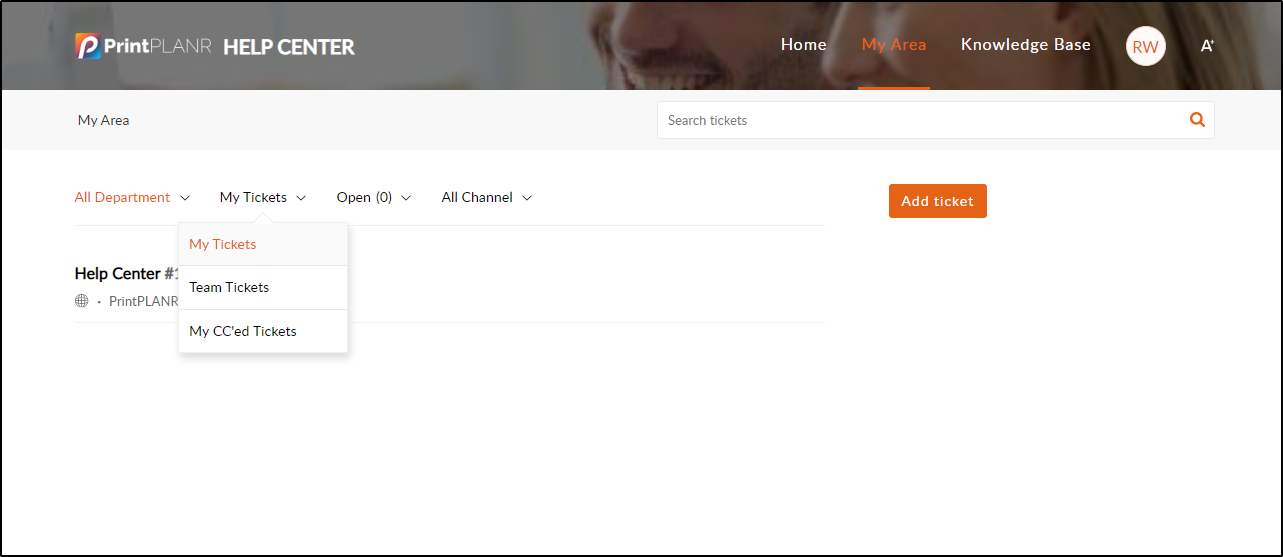
After choosing whose tickets you would like to see, you can apply below filters
All Status - Will display all the tickets
Open - Will display tickets that are currently active or being worked on
Closed - Will display all tickets that are completed or closed due to inactivity
On Hold - Will display those tickets that are waiting for your reply or the Support team have put them on Hold for the time being